


Network WiFi Scan
4.4134.00 Reviews
App Specs
- Version
- 1.0.1
- Updated On
- License
- Free
- Downloads
- 500,000+
- Developer
- Appora studio
- Categories
- Tools
- Platform
- Android
Screenshots
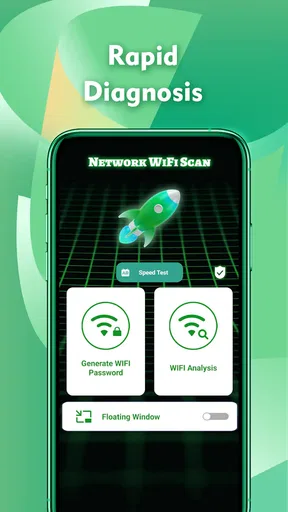
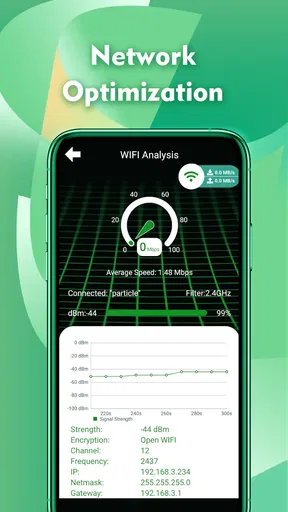
 Analysis by AppCompare
When a video stutters in one room but plays smoothly a few steps away, it is tempting to blame the internet plan. I find it more useful to first check what the nearby wireless networks are doing. Network WiFi Scan is a free tools app from Appora studio that is built around that kind of quick inspection. Its appeal is straightforward: it helps make the invisible WiFi environment easier to understand, without asking every user to approach it like a network engineer.
What the current app is useful for
The core idea is to look around before choosing or troubleshooting a connection. Rather than treating a WiFi name as the whole story, a scanner can help you compare visible networks and consider whether signal conditions might explain a problem. That is useful when you are deciding where to sit, checking whether your home network reaches a back room, or trying to make sense of a crowded café connection.
The app’s short name and broad promise can make it sound like a complete network-management suite, but I would approach it as a practical inspection tool. It is most valuable when you have a specific question—such as whether the signal changes near a doorway—not when you expect one scan to repair a router or guarantee faster internet. A scanner can show clues; your internet provider, router settings, and the device you are using still affect the final result.
How to get a useful reading
For a fair comparison, keep your phone in roughly the same orientation and give each location a moment before judging the result. Walk from the router toward the problem area in short steps, noting where the signal seems to weaken. Then repeat the route later if the first reading looks unusual. People, doors, and other temporary obstacles can change what your phone receives, so a single glance is better treated as a clue than a final verdict.
There is also a useful distinction between a strong WiFi signal and a good internet experience. The phone can be close to the router and still have a slow connection because of congestion or an issue farther upstream. I would use a scanner to narrow down where to investigate, then test an actual web page or call from the spot that matters. That simple two-part check avoids buying new equipment just because one number or indicator looked disappointing.
Where it fits among alternatives
Compared with the WiFi menus built into a phone, a dedicated scanner is appealing when you want a more deliberate view of nearby networks rather than simply joining one. The built-in menu remains the quicker choice for connecting, while a router’s own app or administration page is generally the more relevant place to change settings. Network WiFi Scan sits between those jobs: it is for observing the wireless surroundings, not a replacement for either connection controls or router management.
That boundary matters for expectations. If your main need is to change a password, pause a device, or configure a router, I would start with the router’s own tools. If you only need to connect to a known network, the phone’s standard WiFi screen may be enough. The scanner makes the most sense when you want extra context before deciding what to try next.
Worth Reading Before You Choose

EA SPORTS FC Mobile 26 Is a Bigger Football Game, but It Takes Time

Flipboard Shows What News Apps Must Do Beyond the Feed

Switching to Android Auto Means Rethinking Your Driving Routine

Google Calendar Makes a Crowded Week Easier to Manage

Ludo King Makes the Most of the Minutes Between Plans

Baby Panda World Brings Quick Play to Modern Phones, but Its Game Library Feels Busy
Getting Started with Network WiFi Scan
First things first, downloading and setting up Network WiFi Scan is a breeze. Available on both Android and iOS, it’s a no-fuss install. Once you’ve got it on your device, it’s ready to roll, with a neat and intuitive interface that doesn’t overwhelm you with options. No one wants to feel like they need a degree in tech just to use an app, right?
The User Experience
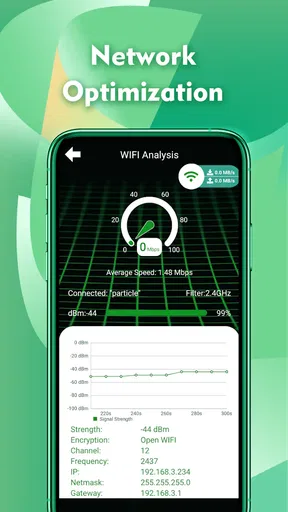
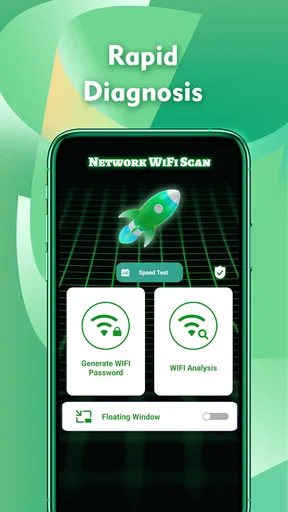
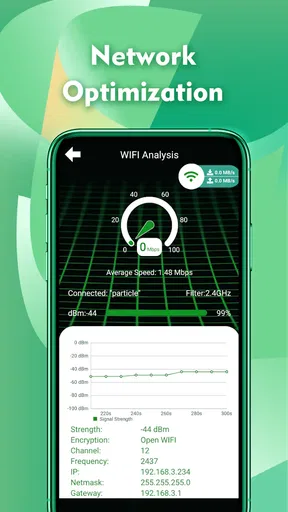
One thing I immediately loved about this app is its user-friendly layout. The main screen provides a clear view of available networks around you. With a simple tap, you can access detailed info about each network, including signal strength, frequency, and even security level. It’s like having a personal WiFi guru right in your pocket.
The interface is clutter-free, making it easy to navigate even if you’re not a techie. The design isn’t just about aesthetics; it’s about functionality. The app offers real-time updates, so you’re always in the know about the best connection options available.
Reading results without jumping to conclusions
When I compare entries in a busy place, I look for patterns rather than assuming that the strongest-looking network is automatically the best choice. A network may appear prominent but still be slow, restricted, or unsuitable for what I need. If several names look similar, I check carefully before connecting; a familiar-looking name alone is not proof that a network belongs to the venue. This is a small habit, but it helps keep convenience from overriding basic caution.
Frequency information can also help explain why two networks behave differently, but it is not a simple quality score. Distance, walls, device placement, and local interference all affect what reaches the phone. I use that detail as context, not as a promise that switching to one network will solve every dead spot. For a home test, checking the same location at different times can be more revealing than repeatedly refreshing while standing still.
Features That Stand Out
What sets Network WiFi Scan apart from the rest? Well, it’s packed with features that make it more than just a scanner. For starters, I found the signal strength meter super helpful. It’s great for finding that sweet spot in your home or office where the WiFi is strongest. Say goodbye to buffering during your favorite show!
Another nifty feature is the network history. This lets you see which networks you’ve connected to in the past. Perfect for those times when you’re trying to remember the name of that coffee shop WiFi that had lightning-speed internet.
A practical way to use network history
History is most useful as a memory aid, not as a ranking of today’s connection quality. If I return to a place and recognize a network, I still check that I am choosing the right one and consider whether its performance has changed. A previous connection can save time, but it cannot tell me whether the venue has changed its setup or whether the signal is currently crowded.
For a small home troubleshooting exercise, I would note the room and time alongside what I observe, even if that note is just a short reminder on my phone. Comparing the living room and the work desk later is more actionable than trying to remember which spot felt better. The scanner can help identify a pattern; keeping the test consistent is what makes that pattern useful.
Security and Privacy
In today’s digital age, security is a big deal, and this app doesn’t drop the ball. It provides you with critical security information, so you can avoid connecting to networks that might pose a risk. Plus, the app respects your privacy, not collecting unnecessary data about your usage. It’s good to know your personal info isn’t being tossed around the virtual world.
What the security view can and cannot do
I treat a security label as a prompt to make a careful choice, not as a complete safety audit. A scanner cannot make an unfamiliar public network trustworthy simply by showing information about it. For sensitive activity, I prefer a network I recognize and trust; on shared WiFi, I avoid assuming that the network name or a reassuring-looking detail guarantees privacy. That cautious approach is especially useful while traveling, when several similarly named networks may appear in one location.
If a reading looks confusing, I would first rescan and check that I am looking at the intended network rather than making a security decision from a quick glance. The app is a source of useful context, but safe browsing still depends on the choices I make and the services I use. This is why I see its security information as one part of a decision, not a substitute for judgment.
Practical Uses in Everyday Life
Aside from troubleshooting WiFi woes at home, Network WiFi Scan is a lifesaver when you’re on the go. Whether you’re traveling, working remotely, or just hanging out at your favorite café, knowing which network to connect to can save you a lot of headaches.
For those who work in network management, the app is a handy tool for diagnosing network issues. The detailed analytics can help you make informed decisions about network improvements or adjustments. Not too shabby for an app you can carry in your pocket!
A realistic test, and who should use it
Imagine that I am working from home and a video call keeps breaking up at the far end of the apartment. I would scan near my desk, then compare what I see closer to the router, keeping the phone position similar. If the signal changes sharply along that route, I have a sensible next step: adjust where I work or investigate router placement. If the signal appears steady but the call still struggles, I would look beyond WiFi coverage rather than assuming the scanner has found the whole problem.
That makes the app a good fit for curious everyday users, remote workers who want to investigate weak spots, and people who visit the same wireless environments often. It is less suitable for someone who expects a one-tap speed boost, a full router-control panel, or a professional diagnostic workstation. Network administrators may find it useful for a quick look from a phone, but I would not treat a mobile scan as a substitute for dedicated equipment or a careful site survey.
Version, adoption, and what to watch
The app is currently at version 1.0.1, following its release on April 27, 2026. That places it at an early point in its product life, so I would judge it on what it offers now rather than assume a particular roadmap. For existing users, a version number by itself does not tell me that the scanning method or interface has changed; I would check the app after an update and compare results in the same location if a behavior seems different.
Its audience is growing: Network WiFi Scan has over 100,000 installs and an average rating of 4.1 from around 700 ratings, with 54 written reviews. Those figures suggest that people are finding a use for it, though they do not tell me whether it suits a specific phone or network setup. It is free and rated for Everyone, which makes trying it an easy decision for many users; the practical question is whether you want a scanner’s extra context often enough to keep it on your device.
What I would watch for in future use is consistency: whether repeated scans make it easy to compare nearby networks, and whether the information stays understandable when the surroundings are crowded. Those are more meaningful signs of day-to-day value than a long feature list. If you rely on it for a particular recurring task, such as checking a home dead zone, repeat that same check after an update before drawing conclusions about changed performance.
Wrapping It Up
All in all, Network WiFi Scan is a solid choice for anyone looking to optimize their WiFi usage. It’s intuitive, reliable, and packed with features that cater to both casual users and tech enthusiasts alike. Whether you’re just trying to avoid dead zones in your apartment or manage a network, this app has got your back.
So, if you’re tired of bad connections and want more control over your WiFi experience, give it a whirl. You might just find it’s the app you never knew you needed.
One last expectation check
My recommendation comes with a simple qualification: use it to understand what is happening around your phone, then choose the next step based on the pattern you see. It can help you compare locations, recall networks, and make a more informed connection choice, but it cannot promise faster internet or replace a router’s own controls. If that is the kind of modest, practical help you want, it is an easy free tool to try; if you need hands-on network configuration, another option will serve you better.
Pros
- User-friendly interface for easy navigation.
- Quickly identifies network speed and strength.
- Compatible with a wide range of devices.
- Offers detailed connection information.
- Regular updates ensure reliability.
Cons
- May drain battery if used continuously.
- Some features require in-app purchases.
- Ads can be intrusive at times.
- Limited functionality without premium version.
- Occasional connectivity drop issues.
FAQs for Network WiFi Scan
What features does Network WiFi Scan offer?
Network WiFi Scan provides users with a comprehensive suite of tools to analyze and manage their WiFi networks. Key features include real-time network scanning, signal strength measurement, channel interference detection, and detailed reports about network performance. It also offers security checks to identify potential vulnerabilities in your network.
Is Network WiFi Scan user-friendly for beginners?
Yes, Network WiFi Scan is designed with an intuitive interface that is easy to navigate, even for beginners. The app includes step-by-step tutorials and helpful tips to guide users through the process of scanning and analyzing their WiFi networks, making it accessible for users with varying levels of technical expertise.
Does Network WiFi Scan support all types of WiFi networks?
Network WiFi Scan supports a wide range of WiFi network types, including home, office, and public networks. It is compatible with both 2.4 GHz and 5 GHz frequency bands, allowing users to get comprehensive insights across different environments. This makes it a versatile tool for anyone looking to optimize their network performance.
Are there any privacy concerns when using Network WiFi Scan?
Network WiFi Scan prioritizes user privacy and security. The app does not collect or store any personal data from users. All network analysis is performed locally on your device, ensuring that your information remains confidential. The app complies with industry-standard privacy regulations to protect user data.
How does Network WiFi Scan improve network performance?
By identifying issues such as weak signals, channel interference, and network congestion, Network WiFi Scan helps users optimize their WiFi settings. Users can adjust their router settings based on the app's recommendations to enhance connectivity and speed. This proactive approach ensures a more stable and efficient network performance.


